 Orbcast
Everything a demo needs. Nothing it doesn’t.
A small native app that does the recording part really well.
Floating camera bubble
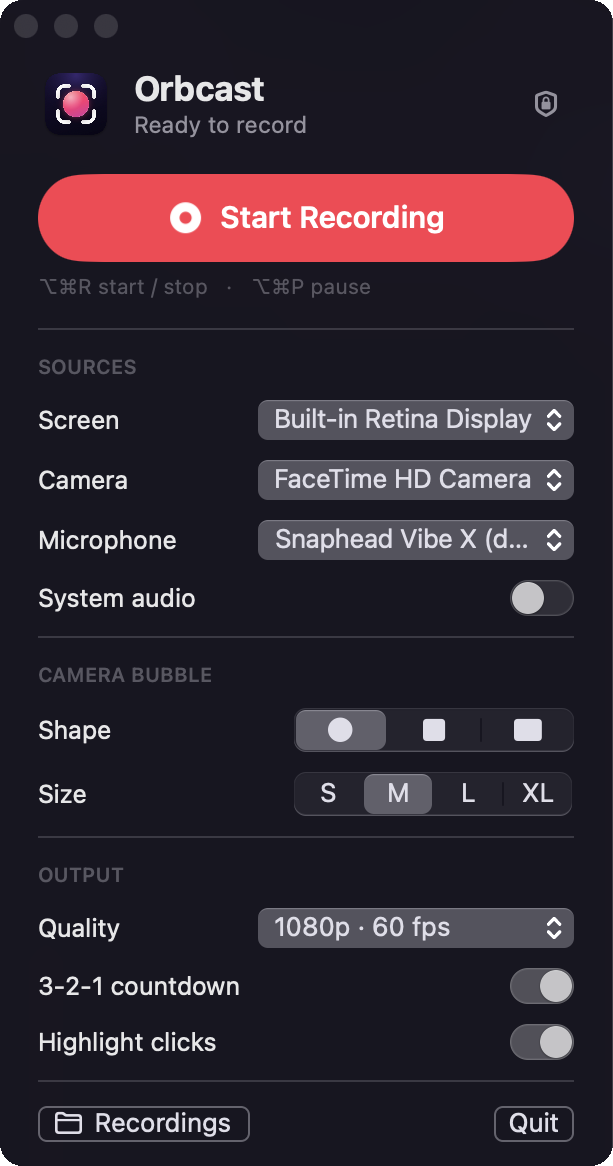
Circle, rounded square or 16:9. Drag it anywhere, four sizes, mirrored like a real mirror.
Screen, mic and system audio
Any display at 1080p or 4K, 30 or 60 fps, with your mic and app audio.
Pause, restart, discard
Pause without cuts in the file. Redo a fumbled take in one click.
Click highlights
A soft ripple on every click so viewers can follow along.
Trim and export MP4
Trim the ends, export a web-ready MP4, copy it and paste into Slack or email.
Invisible controls
The control panel, recording bar and countdown never appear in your video. ⌥⌘R starts and stops from any app.
From idea to MP4 in three steps
Press ⌥⌘R
Pick your screen, camera and mic once. A 3-2-1 countdown and you’re live.
Talk through it
Drag your bubble anywhere. Pause, restart a bad take, keep going.
Trim and share
Trim the edges, export an MP4 and paste it wherever your team talks.
Free. For everyone. Forever.
Every feature for every person. Your videos stay on your Mac, in Movies › Orbcast.
- No subscription
- No account
- No watermark
- No time limits
- 4K at 60 fps
- Open source (MIT)
Install in a minute
Orbcast isn’t notarized by Apple yet, so macOS asks you to confirm the first time.
1. Install
- Download Orbcast.dmg and open it.
- Drag Orbcast into Applications.
- Open Orbcast from Applications.
2. If macOS blocks it
- Click Done on the warning.
- Open System Settings › Privacy & Security.
- Scroll down and click Open Anyway next to Orbcast, then confirm.
3. Allow permissions
- Allow Camera and Microphone when asked.
- Turn on Orbcast in Screen & System Audio Recording.
- Click Relaunch in Orbcast’s welcome window.
4. Record
- Press ⌥⌘R or click Start Recording.
- Press ⌥⌘R again to stop.
- Trim, export MP4, share.